
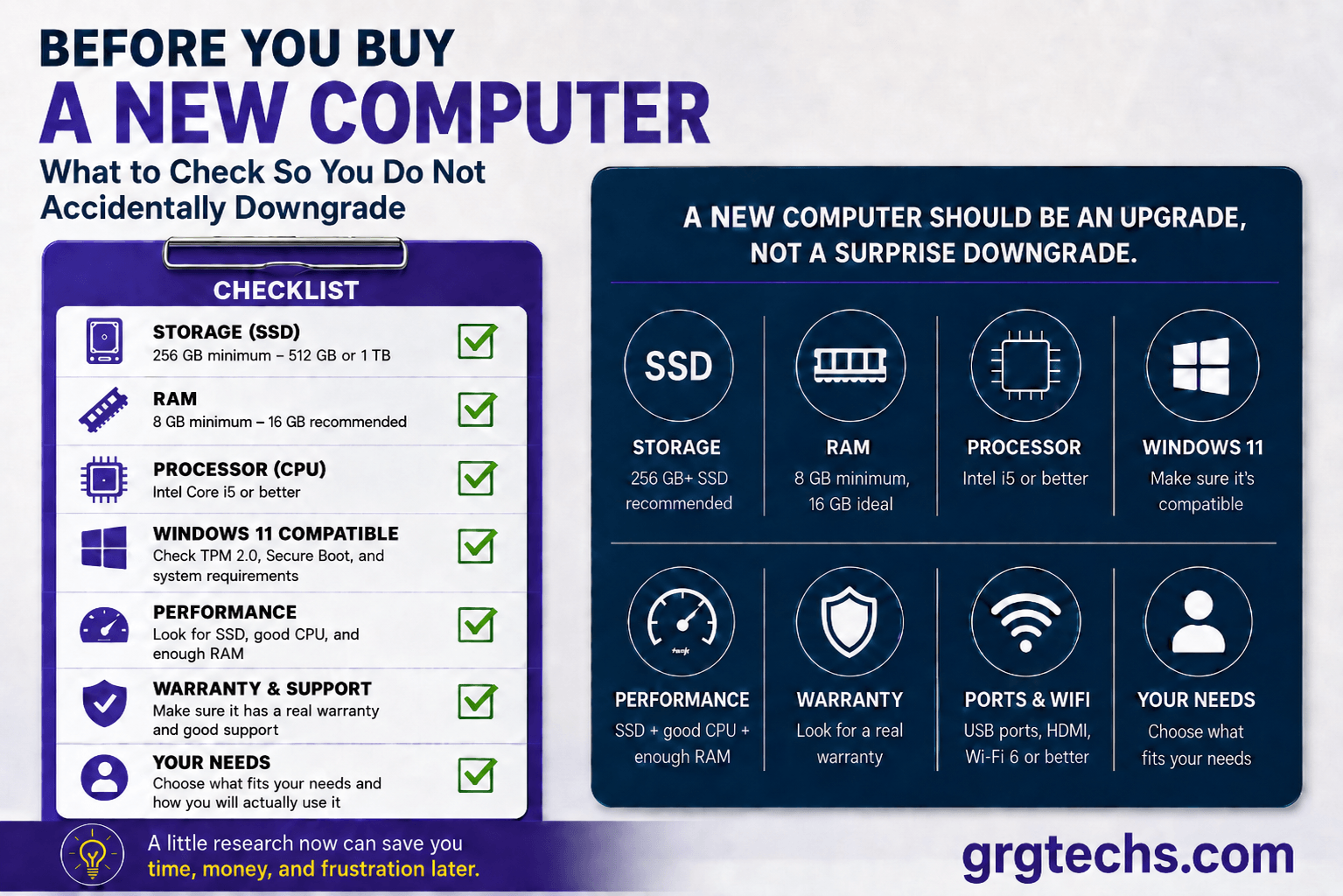
A new laptop should feel like an upgrade.
It should start faster, run smoother, store your files comfortably, and make everyday tasks easier. But many people are surprised to find out that a brand-new laptop can sometimes have less storage, less memory, or weaker performance than the computer they are replacing.
Quick Lesson
I recently helped someone who bought a brand-new laptop, only to find out it had less storage and weaker specs than his eight-year-old PC.
In this case, the new computer did not meet his existing needs, and we had to return it. For example, the drive was already full by the time his family photos were copied over.
A new computer should be an upgrade, not a surprise downgrade.
That does not mean the laptop was useless. It means the purchase was made based on the word “new” instead of checking what was actually inside the computer.
Here are the main things to look for before buying or upgrading to a new PC.
1. Do Not Judge a Computer by Age Alone
A newer computer is not always better than an older one.
An older desktop or laptop may have more storage, more memory, or a better processor than a low-cost new laptop. Many budget laptops are built for basic web browsing, email, schoolwork, and light document editing. That may be fine for some users, but it can feel like a downgrade if you are used to a stronger machine.
Before replacing your current computer, check what you already have:
- Processor type
- Amount of RAM
- Hard drive or SSD storage size
- Storage type
- Windows version
- Age and condition of the device
- What you actually use the computer for
The goal is not just to buy something new. The goal is to buy something that fits your needs.
2. Storage: 64 GB or 128 GB May Not Be Enough
Storage is where your files, programs, photos, videos, and Windows updates live.
Some cheaper laptops come with 64 GB or 128 GB of storage. In my opinion, those storage sizes are too small for most Windows users today. Windows itself, updates, Microsoft Office, browser cache, photos, downloads, and temporary files can quickly fill that space.
For most people, I recommend:
- 256 GB minimum for light use
- 512 GB for most home users
- 1 TB if you store many photos, videos, business files, or large programs
At minimum, the computer should have an SSD. An SSD is much faster than an old-style hard drive and can make a computer feel much quicker.
3. RAM: 4 GB Is the Bare Minimum for Windows 11
RAM is the computer’s short-term working memory. It affects how well the computer handles multiple tasks at once, such as how many browser tabs you can keep open.
A laptop with 4 GB of RAM may technically run Windows, but it can feel slow once you open a browser, email, antivirus software, and a few documents.
For most buyers today, I recommend:
- 8 GB RAM as the minimum
- 16 GB RAM if you want better performance and longer usefulness
- 32 GB RAM for heavier business, creative, engineering, or technical use
If you keep many browser tabs open, use Zoom, work with large spreadsheets, or run several apps at the same time, RAM matters.
4. Processor: Do Not Buy Only Based on the Brand Name
I will admit my personal preference is usually Intel, but the name “Intel” or “AMD” by itself does not automatically mean the computer is good.
Processors come in different levels. For example, an Intel Core i5 is usually a better choice than a low-end Intel Celeron or Pentium. AMD Ryzen processors can also be good, especially in the Ryzen 5 and Ryzen 7 range, but the same rule applies: check the actual model, not just the brand.
For basic home use, look for:
- Intel Core i3 or better
- Intel Core i5 if the budget allows
- AMD Ryzen 5 or better if choosing AMD
- Newer generation processors when possible
For very light use, such as email, web browsing, and simple documents, lower-end processors may be acceptable. But if you want the laptop to last several years, avoid buying the absolute cheapest processor.
5. Check Windows 11 Compatibility
Windows 10 reached end of support on October 14, 2025. Microsoft does offer Extended Security Updates for eligible/enrolled devices through October 13, 2026, but that should be treated as extra time, not a long-term plan.
That means many people are now replacing older computers or upgrading to Windows 11 when possible.
Before buying a used or refurbished computer, make sure it officially supports Windows 11. A computer may still work, but if it does not meet Windows 11 requirements, it may not be the best long-term choice.
Important Windows 11 items include:
- Supported processor
- TPM 2.0
- Secure Boot
- Enough RAM
- Enough storage
Microsoft offers a free PC Health Check tool that you can use to check compatibility. If you are not sure, ask someone to check before you buy.
6. Be Careful With “Cloudbook” or “eMMC” Laptops
Some low-cost laptops are designed to be used mostly online. They may have small built-in storage and slower storage technology called eMMC.
These computers can be okay for very basic use, but they are not ideal if you want to store many files, install several programs, or keep the computer for years.
Be cautious with laptops that advertise:
- 64 GB storage
- 128 GB storage
- eMMC storage
- Very low prices
- “Good for students” without clear specifications
Cheap is not always bad, but cheap with weak specs can become frustrating quickly.
7. Think About How You Actually Use the Computer
Before buying, ask yourself:
- Do I mostly browse the web and check email?
- Do I store a lot of photos or videos?
- Do I use Microsoft Office?
- Do I use Zoom or video calls?
- Do I use accounting software?
- Do I print and scan often?
- Do I need it for school or work?
- Do I want it to last several years?
A senior who wants email, photos, banking, and video calls may need something different from a student, remote worker, small business owner, or gamer.
The right computer depends on the job it needs to do.
8. My Simple Recommendation for Most Home Users
For a good everyday Windows laptop, I would usually look for:
- Windows 11
- Intel Core i5
- 8 GB RAM minimum, or 16 GB RAM if the budget allows
- 512 GB SSD
- 14-inch or 15.6-inch screen
- Good keyboard and trackpad
- At least two USB ports
- Wi-Fi 6 or better
- Webcam for video calls
- A real warranty
You can go lower if your needs are very basic, but this type of setup gives most people a much better experience.
9. Should You Upgrade Your Old Computer Instead?
Sometimes you do not need a new computer.
If your current computer has a decent processor, it may only need:
- More RAM
- A new SSD
- A cleanup
- A fresh Windows installation
- Malware removal
- Startup optimization
- Data backup
- Windows 11 upgrade after a compatibility check
An older computer with an SSD and enough RAM can sometimes perform better than a brand-new budget laptop.
Before spending money on a replacement, it is worth checking whether your current computer can be upgraded.
10. Final Tip: Ask Before You Buy
As my friend just learned, the best time to ask for computer advice is before you buy, not after.
A quick check can help you avoid buying a laptop that is too slow, too small, or not suitable for your needs. It can also help you decide whether your current computer should be upgraded instead of replaced.
At GRGTECHS, we help home users, seniors, and small businesses understand technology in plain language. If you are thinking about buying a new laptop, upgrading from Windows 10, or replacing an older PC, we can help you check the specs before you spend your money.
A new computer should be an upgrade, not a surprise downgrade.
We can also help review a laptop you found online before you buy it. Just drop us a line.
P.S. We left out Chromebooks on purpose. That is a separate conversation.
Thinking About Buying a New Laptop?
GRGTECHS can help review a laptop you found online before you buy it, especially for seniors, students, home offices, and small businesses.
Do not spend money on the wrong computer.